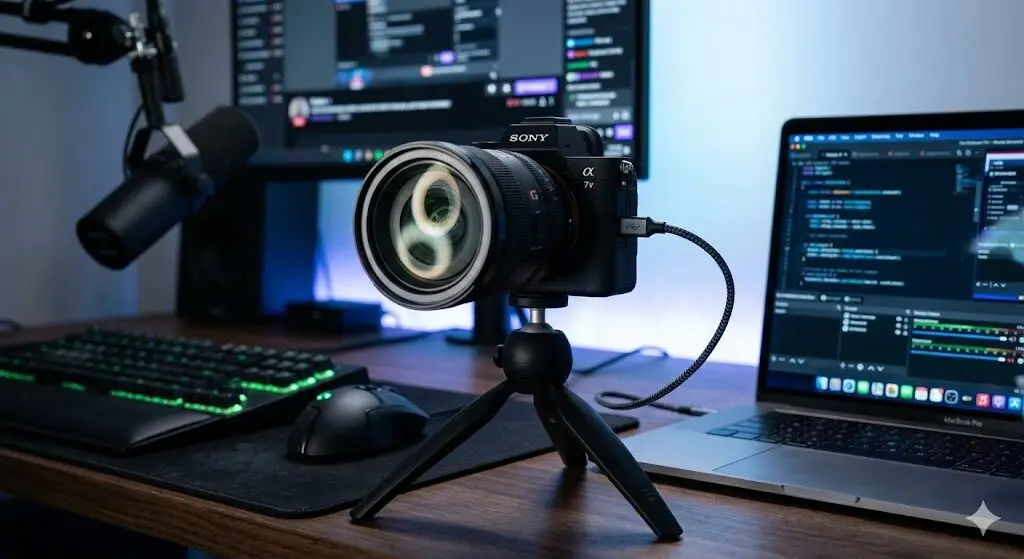
Sony cameras have become popular for livestreaming because their autofocus—especially Eye AF and Subject Recognition—handles a solo presenter without a camera operator. Combined with clean HDMI output and, on some models, direct USB streaming, Sony offers everything needed to replace a webcam with a significantly better image.
Best Sony Cameras for Livestreaming: Comparison
| Camera | Clean HDMI | USB Streaming | Best For | Price |
|---|---|---|---|---|
| Sony ZV-E10 II | Yes (4K/30p) | Yes (1080p) | Budget creator livestream | ~$800 |
| Sony A6700 | Yes (4K/30p) | Yes (1080p) | APS-C quality streaming | ~$1,399 |
| Sony ZV-E1 | Yes (4K/30p) | Yes (1080p) | Full-frame vlog/live | ~$2,199 |
| Sony A7C II | Yes (4K/30p) | Yes (1080p) | Professional stream + recording | ~$2,499 |
| Sony A7 V | Yes (4K/60p) | Yes (1080p) | Top-tier stream quality | ~$3,299 |
| Sony FX30 | Yes (4K/30p RAW) | Yes | Cinema-grade production stream | ~$1,999 |
USB Streaming: How Sony’s Direct Connection Works
All current Sony Alpha bodies and ZV-series cameras support USB streaming mode—no capture card required. Connect the camera via USB-C to your PC or Mac, set the camera to Streaming Mode (Menu → Network → Streaming → USB Streaming), and the camera appears as a webcam device in OBS Studio, Zoom, Microsoft Teams, and other streaming software.
USB streaming on Sony delivers 1080p/30p or 1080p/60p to the host computer. For streams where you want maximum video quality, HDMI to a capture card (Elgato 4K60 Pro, Magewell USB Capture HDMI) provides 4K input that OBS can downscale to your stream bitrate.
Setting Up USB Streaming in OBS
- Connect Sony camera via USB-C cable to computer
- On camera: Menu → Network → USB Streaming → On
- In OBS: Add Source → Video Capture Device → Select “Sony Camera” from device list
- Configure resolution (1920×1080) and frame rate (30 or 60fps) in device properties
- Optionally add audio source: USB audio from camera, or separate microphone
Sony ZV-E10 II for Livestreaming: Best Budget Option
For creators starting their streaming setup, the ZV-E10 II delivers video quality that’s dramatically superior to any webcam at around $800 body price. The fully articulating screen allows self-monitoring during streams without a separate monitor. AI face detection keeps focus locked on the presenter even with movement. The built-in directional microphone is functional for basic streams; the MI Shoe accepts the ECM-B10 digital microphone for improved audio.
The electronic IBIS helps with incidental movement, though for a fixed streaming position on a tripod or desk mount, IBIS is largely irrelevant. The ZV-E10 II’s main limitations for streaming: no physical EVF (minor for streaming use) and NP-FW50 battery that requires more frequent swaps or USB-C power bank for marathon streams.
Sony A7C II for Streaming: Professional Grade
For streamers who want production-quality video and intend to also use the camera for YouTube production, photography, or other professional work, the A7C II is the superior investment. The 33MP full-frame sensor delivers noticeably better low-light performance—useful for streams where you can’t fully control your ambient lighting. The IBIS is more effective, and the battery life is substantially better than the ZV-E10 II’s NP-FW50.
Paired with a Sigma 35mm f/1.4 DG DN Art or Sony FE 35mm f/1.8, the background blur in a streaming setup is genuinely cinematic—much more impressive than APS-C alternatives at the same working distance.
Choosing the Right Lens for Streaming
| Setup | Recommended Lens | Effect |
|---|---|---|
| Desk/close-up (50-80cm) | 35mm f/1.8 (FF) or 24mm f/1.8 (APS-C) | Wide enough for talking head + background separation |
| Room/standing (1.5-3m) | 50mm f/1.8 (FF) or 35mm f/1.8 (APS-C) | Natural compression, flattering field of view |
| Full body / standing far | 85mm f/1.8 (FF) | Compression flatters full-body presentation |
| Ultra-wide gaming setup | 20mm f/1.8 (FF) | Wide desk+face frame, shows equipment in background |
Key Settings for Sony Livestreaming
Autofocus
- AF Mode: AF-C
- Subject Recognition: Human (Face + Eye priority)
- AF Transition Speed: 2–3 (smooth transitions for moving subjects on screen)
- AF Subject Shift Sensitivity: 2 (avoids camera hunting to background when you lean or gesture)
Exposure
- Mode: Aperture Priority (A) with Auto ISO
- Set aperture for desired depth of field and background blur amount
- Auto ISO: On, Maximum 6400 for ZV-E10 II/A6700, 12800 for A7 V/A7C II
- Minimum SS: 1/60s (matches 30fps streaming frame rate double)
White Balance
Set a manual custom white balance matched to your key light (key light color temperature in Kelvin: daylight = 5500K, LED panels usually specify their Kelvin rating). Auto WB can drift during a long stream if a cloud moves and changes your window light, causing noticeable color shifts on-stream.
Display Settings
- Turn off peaking, histogram, and grid lines for streaming mode—they appear in the output signal
- Enable Clean HDMI (or check Streaming mode settings): removes menu overlays from the HDMI signal
Audio for Sony Livestreams
Microphone options in order of quality improvement:
- Sony ECM-B10 in MI Shoe → camera’s USB audio → OBS (simple, good quality)
- Dedicated USB microphone (Shure MV7, Rode NT-USB) → directly to PC → separate audio source in OBS (best isolation, most control)
- Sony ECM-W3S wireless lavalier → camera audio → USB to PC (mobility on stream)
- XLR microphone + interface (Focusrite Scarlett Solo) → separate audio in OBS (maximum quality)
Preventing Overheating on Long Streams
Extended streaming (2+ hours) can cause thermal throttling on some Sony bodies. Solutions:
- AC power via USB-C battery eliminator (Sony AC-PW20AM equivalent) or USB-C PD adapter eliminates heat from battery charging
- Good ventilation: don’t enclose the camera in a tight housing; keep the MI Shoe area clear for heat dissipation
- Sony FX30 and FX3 Cinema Line bodies have active cooling fans — essentially eliminate overheating concerns for long-form streaming
- A7 V and A7C II: monitor temperature display (if accessible in menu) during initial long-stream testing
Frequently Asked Questions
Can Sony cameras stream directly to YouTube or Twitch?
Some Sony cameras with built-in Wi-Fi can stream directly via the camera’s built-in streaming function (RTMP streaming to a custom URL). However, most streamers use OBS or Streamlabs OBS on a computer, with the Sony camera connected via USB streaming or HDMI capture card, for more control over overlays, scenes, and audio mixing.
What capture card works best with Sony cameras?
Elgato HD60 X (USB, 4K30 or 1080p60, ~$149) or Elgato 4K60 Pro (PCIe, 4K60, ~$199) are the standard recommendations. Magewell USB Capture HDMI 4K (~$399) is the professional choice with lower latency and better driver stability for critical production streams.
Does Eye AF work during USB streaming on Sony?
Yes—all Sony AF features, including AI Subject Recognition, Eye AF, and Face Detection, function normally during USB streaming and HDMI output modes. The autofocus operates independently of the output mode.
What’s the best Sony camera for Zoom meetings?
The Sony ZV-E10 II via USB streaming is the most practical choice—compact, excellent face tracking, looks dramatically better than any built-in webcam, and requires no additional capture card. Set USB streaming on in camera, connect USB-C, select as video source in Zoom.
Sony cameras offer a compelling upgrade path from webcam to professional-quality streaming setup at any budget. The AI autofocus that keeps the presenter in focus without a camera operator is a genuine differentiator that webcams and many competitor cameras can’t match.