Are you struggling to access your Sony camera memory card? Don’t worry, we’ve got you covered!
Last updated: April 2026
In this article, we’ll show you how to unlock Sony camera memory card in just a few simple steps. Whether it’s a physical lock switch issue or a software problem, we’ll guide you through the process of getting your memory card back to normal.
Say goodbye to the frustration of a locked memory card and hello to hassle-free photography!
- The most common cause of a locked Sony camera memory card is a misaligned physical write-protect switch on the card’s left edge.
- Software-level write-protection can be cleared via Windows Command Prompt (diskpart) or dedicated recovery software without losing data.
- File system corruption — often caused by improper card removal — may require formatting, which erases all data; back up first.
- According to the SD Association (2017), cards 64 GB and larger use the exFAT file system, which avoids the 4 GB file-splitting issue common on older FAT32 cards.
- Regular formatting inside the camera (not on a computer) and safe-ejection habits are the most reliable ways to prevent future locking.
What Causes a Sony Camera Memory Card to Lock?
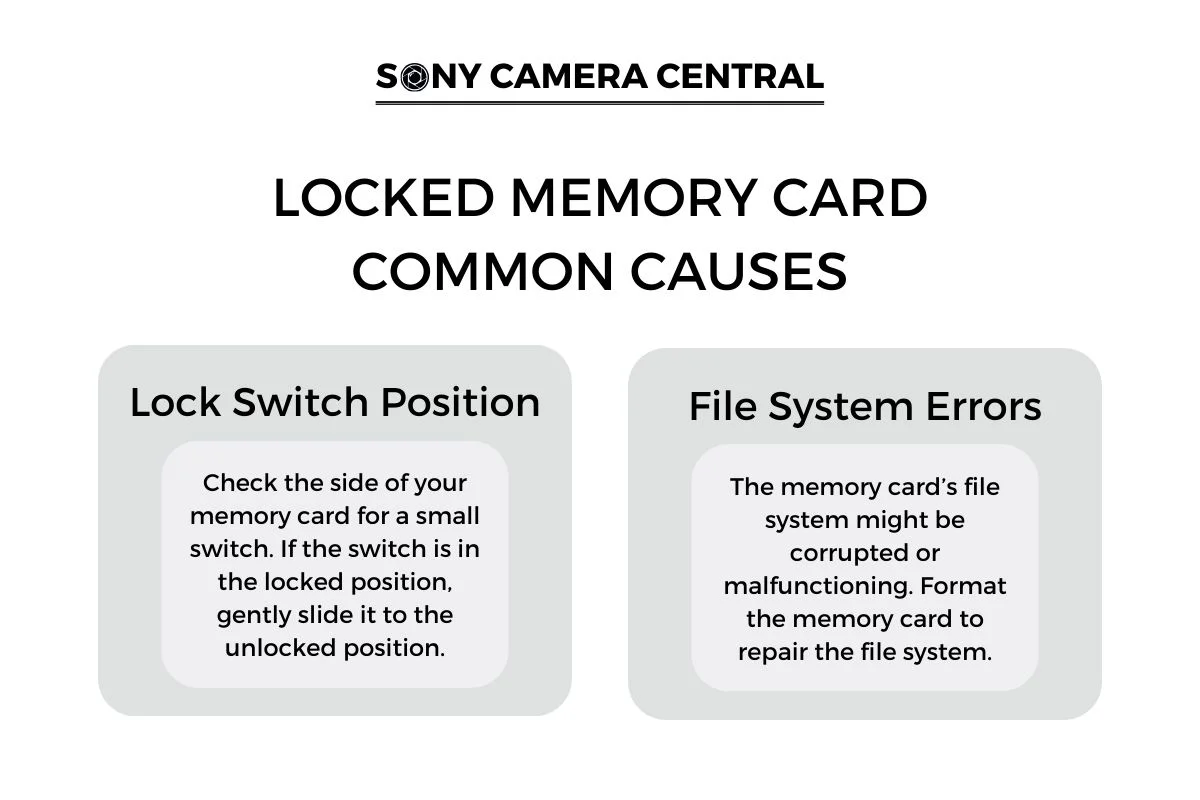
A Sony camera memory card locks due to one of two root causes: a physical write-protect switch that has been toggled to the locked position, or a software-level problem such as file system corruption. Understanding which cause applies to your situation is the fastest way to choose the right fix. Here are the common causes and solutions:
Lock Switch Position
- Location: Check the left edge of your SD memory card for a small sliding switch. (Note: CFexpress Type A cards used in newer Sony Alpha bodies such as the A7 V and A1 II do not have a physical lock switch.)
- Function: This write-protect switch (write-protect switch) is designed to protect your data by preventing accidental deletion or overwriting.
- Action: If the switch is in the locked position (slid toward the card’s bottom), gently slide it upward to the unlocked position, then reinsert the card.
File System Errors
- Potential Issue: The memory card’s file system might be corrupted or malfunctioning, often caused by removing the card while the camera is writing data.
- Solution: Format the memory card to repair the file system. According to the SD Association (2017), cards 32 GB and smaller use FAT32 — which can cause apparent “locking” by splitting files at 4 GB boundaries — while 64 GB and larger cards use exFAT for seamless continuous access.
- Caution: Formatting will erase all data on the card, so ensure you back up important files beforehand.
- Tip: Format the card inside your Sony camera (not on a computer) for best compatibility, following the in-camera Format menu option.
Additional Tips
- Check for Physical Damage: Inspect the memory card for any signs of physical damage — cracks, bent contacts, or worn lock switch — that could be causing the issue.
- Update Camera Firmware: Ensure your Sony camera is running the latest firmware, as updates can resolve compatibility issues with newer memory card formats and capacities.
- Use a Compatible Memory Card: Refer to your camera’s user manual to confirm that you are using a supported card type and capacity. Newer Sony Alpha bodies accept both SD UHS-II and CFexpress Type A cards; older bodies accept only SD.
Follow these steps and tips to resolve the locked memory card issue and prevent future occurrences. Remember to handle your memory card carefully and always back up your important data to ensure its safety.
How to Unlock Sony Camera Memory Card
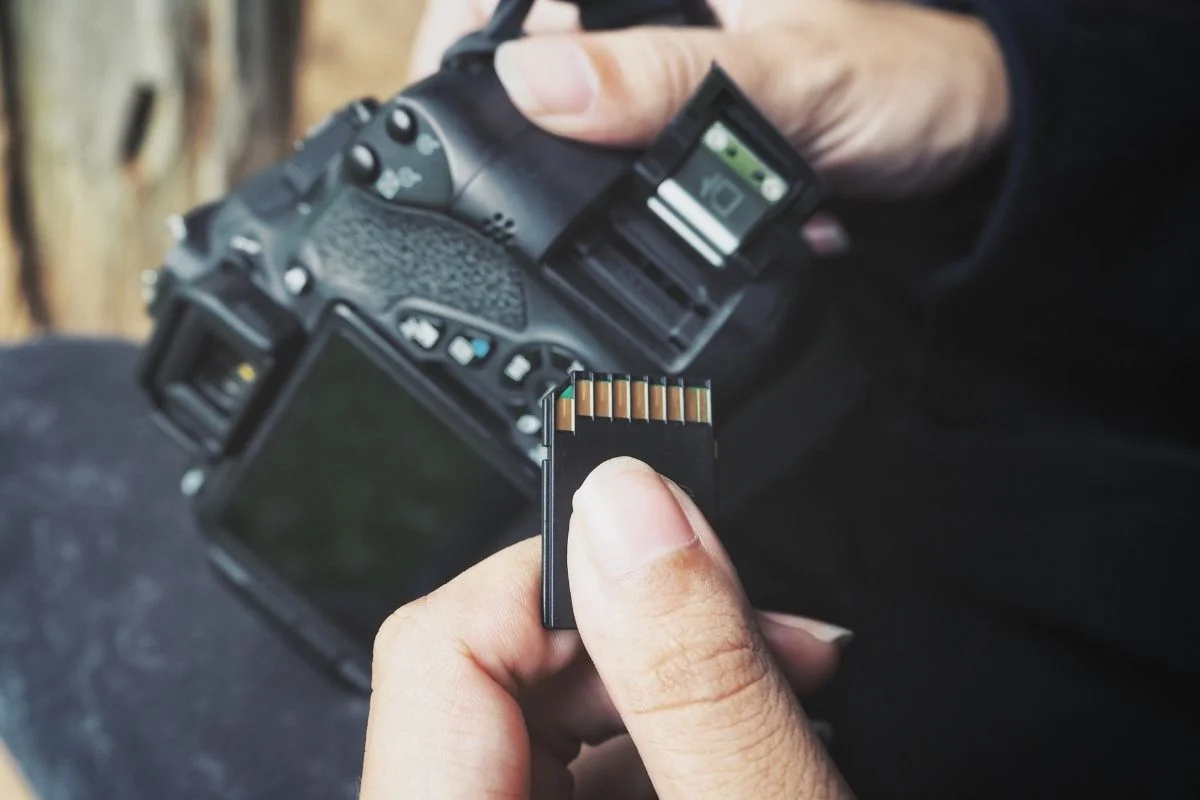
You can unlock a Sony camera memory card using two main approaches: dedicated software solutions (easiest for beginners) or Windows Command Prompt (diskpart), which works without downloading any third-party tools. Choose the method that best matches your situation using the comparison table below.
| Method | Best For | Cost | Data Recovery | Difficulty |
|---|---|---|---|---|
| Sony Memory Card File Rescue | Sony card owners needing Sony-specific recovery | Free (Sony download) | Yes — Sony formats | Easy |
| EaseUS Data Recovery Wizard | General-purpose recovery across card brands | Free tier (2 GB limit); paid for full | Yes — broad format support | Easy |
| Windows CMD (diskpart) | Removing software write-protection without third-party tools | Free (built-in) | No — unlocking only | Intermediate |
| In-Camera Format | Clearing persistent file system errors after backing up data | Free | No — erases card | Easy |
Unlock SD Card Using Software Solutions
Dedicated software is the fastest way to both remove software-level write-protection and recover any files that may have become inaccessible. Two options stand out for Sony camera users:
The Sony Memory Card File Rescue software (Best for: Sony camera owners recovering Sony-formatted cards) is specifically designed to recover data from Sony memory cards, including unlocking them if they are write-protected. Download and install it on your computer, connect your Sony camera memory card via a card reader, and run the software. It will scan the memory card and provide options to recover and unlock your files.
The EaseUS Data Recovery Wizard (Best for: users who need broad compatibility across card brands and formats) can also help you recover and unlock your Sony camera memory card by scanning and restoring lost or deleted files. A free tier recovers up to 2 GB of data; a paid license removes that limit.
Unlock SD Card in Windows Using CMD
Windows Command Prompt (CMD) with the built-in diskpart utility lets you remove software write-protection from an SD card in under two minutes, with no downloads required. This approach changes the card’s write-protect attribute at the operating system level and does not erase your data.
Access Locked Files by Changing File Permissions
- Access locked files on a Sony camera memory card by removing write-protection attributes via Windows CMD — this works when files show as read-only or access is restricted at the OS level.
- Open Command Prompt as Administrator: press Windows key + R, type
cmd, then press Ctrl + Shift + Enter (or right-click and select “Run as administrator”). - Type
diskpartand press Enter, then typelist diskto identify your memory card’s disk number. - Type
select disk #(replace # with your card’s number), then typeattributes disk clear readonlyand press Enter. Exit diskpart and safely eject the card before reinserting it into your camera.
How to Prevent Your Sony Camera Memory Card From Locking?
The single most effective way to prevent a Sony camera memory card from locking in the future is to always power off the camera before removing the card and to format the card inside the camera — not on a computer — after each major shoot.
You may also find our article on Choosing Durable Memory Cards: Shock and Water Resistance helpful. According to Sony Electronics Inc. (2023), the Sony TOUGH CFexpress Type A G-Series cards carry an IP57 dust and water-immersion rating and are bend-proof to 70N — making physical damage that can trigger false lock states far less likely during field use.
To avoid your Sony camera memory card locking again, regularly inspect the card for scratches, cracks, or wear on the lock switch tab. Avoid exposing the card to extreme temperatures or moisture.
Properly inserting and removing the card from your camera is also crucial to prevent any accidental locking. Format the memory card regularly inside the camera — not on a computer — to clear any potential errors or issues that may cause it to lock. This also resets the file system to the format your specific Sony body expects.
Lastly, always keep a backup of your important photos and files to prevent data loss in case of a card lock.
Frequently Asked Questions
Why does my Sony camera display “Memory Card Locked” even after I slide the switch?
The physical write-protect switch on SD cards is a small plastic tab that can wear down or break, leaving it stuck in a locked state even when it appears unlocked. If sliding the switch does not resolve the error, the tab may need tape to hold it in the unlocked position, or the card should be replaced. CFexpress Type A cards — used in newer Sony Alpha bodies — do not have a physical switch and cannot lock this way.
Can I unlock a Sony camera memory card without a computer?
Yes. If the cause is a software-level issue, you can format the card directly inside the Sony camera via the camera menu (Setup → Format). This resets the file system without needing a computer. However, formatting erases all data, so only use this option after backing up your files or if the card is otherwise inaccessible.
What is the difference between a write-protected card and a corrupted card?
A write-protected card (write-protected) lets you read and view existing files but prevents saving or deleting anything — the camera will display a lock icon or “Memory Card Locked” message. A corrupted card may make existing files unreadable or cause the camera to request formatting. Write-protection is fixed by toggling the switch or using diskpart; corruption typically requires formatting or recovery software.
Will the Windows CMD diskpart method erase my photos?
No. The attributes disk clear readonly diskpart command only removes the software write-protection attribute — it does not delete, move, or format any data. Your photos and videos remain intact. The only unlock method that erases data is formatting the card.
Which Sony cameras support CFexpress Type A memory cards?
CFexpress Type A slots are available on Sony Alpha bodies including the A7R V, A7 IV, A7S III, A1, A1 II, A9 III, FX3, and FX30, among others. According to the CompactFlash Association (2019), CFexpress Type A cards measure 20 × 28 × 2.8 mm — compact enough for hybrid slots that also accept SD UHS-II cards. CFexpress cards do not have a physical lock switch, so locking issues on these cards are always software-level.